
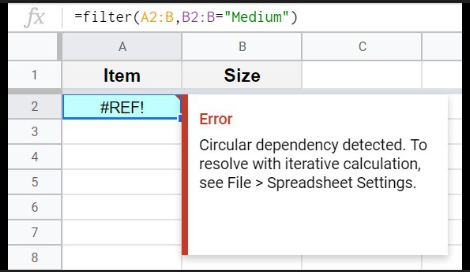
You’re getting a circular dependency error in Google Sheets, and your formula isn’t calculating.
This happens when a formula refers to itself—directly or indirectly—causing Sheets to loop without a result.
This guide shows how to identify and fix it quickly.
Why the Issue Happens
- A formula directly references its own cell
- Two or more cells reference each other (loop)
- Incorrect range includes the formula cell
- Running totals or cumulative formulas built incorrectly
- Copy-paste errors creating hidden circular references
- Misuse of
ARRAYFORMULAacross overlapping ranges
Step-by-Step Fixes
Step 1: Identify the Circular Reference
Google Sheets usually highlights the cell causing the issue.
Typical example:
= A1 + B1 (entered in A1)
This creates a direct loop.
Fix: Ensure the formula does not reference its own cell.
Step 2: Check for Indirect Loops
Sometimes the loop is not obvious.
Example:
- A1 → refers to B1
- B1 → refers to C1
- C1 → refers back to A1
This creates a circular chain.
Fix: Break the chain by removing one dependency or restructuring formulas.
Step 3: Fix Incorrect Ranges
Very common in totals.
Wrong:
=SUM(A:A)
If this formula is in column A, it includes itself → circular error.
Correct:
=SUM(A1:A99)
Always exclude the formula cell from the range.
Step 4: Fix Running Total Formulas
Incorrect running total:
= B2 + C1 (placed in C2, but copied incorrectly)
This can create loops if structure is wrong.
Correct running total:
= C1 + B2
Ensure:
- First value is fixed
- Each row only refers to previous row, not itself
Step 5: Fix ARRAYFORMULA Overlaps
Problem:
=ARRAYFORMULA(A:A * 2)
If placed in column A → circular dependency.
Fix:
Place in a different column:
=ARRAYFORMULA(A:A * 2) (placed in column B)
Never apply ARRAYFORMULA on the same column it references.
Step 6: Separate Input and Output Cells
Bad structure:
- Input in A1
- Formula in A1
Fix:
- A1 → input
- B1 → calculation
Example:
B1 = A1 * 10
Keep inputs and formulas separate.
Step 7: Enable Iterative Calculation (Advanced Use Only)
If you intentionally need a circular reference (e.g., interest calculations):
Go to:
- File → Settings → Calculation
- Enable Iterative calculation
Set:
- Max iterations
- Convergence threshold
Use only if you understand the model logic.
Step 8: Trace Dependencies Manually
If you can’t find the error:
- Click the formula cell
- Check all referenced cells
- Follow the chain until you find the loop
Break the loop at any point.
Common Mistakes
- Using
SUM(A:A)in column A - Referencing the same cell inside its own formula
- Copy-pasting formulas without adjusting references
- Using ARRAYFORMULA in the same column
- Creating circular running totals
- Not separating inputs and calculations
- Ignoring indirect circular references
Pro Tips / Better Alternatives
Use Helper Columns
Instead of complex circular formulas, break logic into steps.
Example:
- Column A → raw data
- Column B → intermediate calc
- Column C → final output
This avoids loops and improves clarity.
Use SCAN for Running Totals (Better Method)
Instead of manual running totals:
=SCAN(0, B2:B10, LAMBDA(acc, val, acc + val))
- No circular reference
- Cleaner logic
- Dynamic
Use Absolute References Carefully
Wrong referencing can create loops.
Use $ properly:
= B2 + $C$1
Audit Large Models Regularly
- Check formula dependencies
- Avoid overlapping ranges
- Keep structure modular
Bottom Line
Fix circular dependency errors in this order:
- Remove self-referencing formulas
- Check and break indirect loops
- Fix ranges (exclude formula cell)
- Separate inputs and outputs
- Avoid ARRAYFORMULA overlap
- Use helper columns for complex logic
Circular errors are always structural, not random.
Fix the structure, and the problem disappears.