
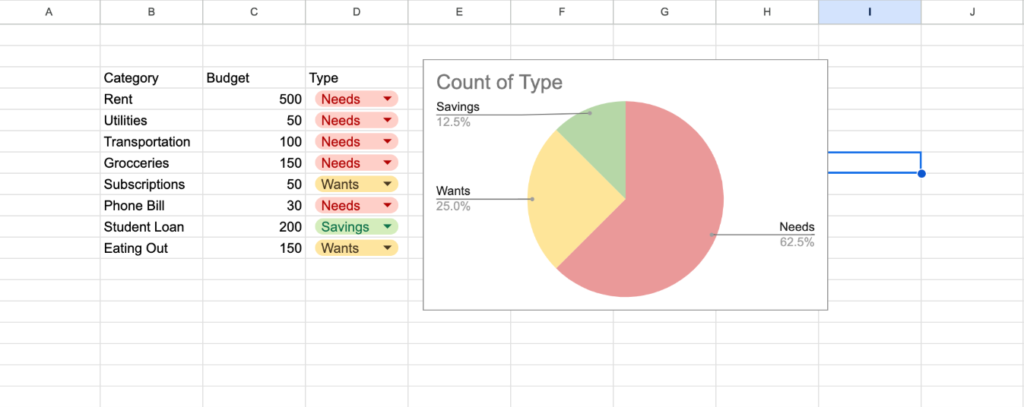
Your chart in Google Sheets isn’t updating, new data isn’t reflected, values stay unchanged, or the chart only updates after manual edits.
This typically shows up as stale visuals, missing data points, or charts ignoring recent changes.
This guide fixes it step by step.
Why the Issue Happens
- Chart data range is fixed and doesn’t include new rows
- Source data linked to formulas that aren’t recalculating
- Using filtered or hidden data ranges
- Data types incorrect (numbers stored as text)
- Blank rows breaking chart continuity
- External data (IMPORTRANGE) not refreshing
- Chart linked to wrong range or sheet
- Browser/cache issues
Step-by-Step Fixes
Step 1: Check Chart Data Range
Most common issue, range doesn’t include new data.
Problem:
A1:B50
New rows after 50 won’t appear.
Fix:
- Click chart → Edit chart → Setup → Data range
- Update to:
A1:B1000
Or use dynamic range:
A:B
(Use carefully for large datasets)
Step 2: Ensure Chart Uses Correct Source Range
Sometimes charts point to wrong or outdated ranges.
Fix:
- Open chart editor
- Check Series and X-axis ranges
- Re-select correct columns manually
Step 3: Fix Data Not Recalculating
If your data uses formulas, chart won’t update if formulas don’t refresh.
Fix:
- Force refresh:
Ctrl + Shift + R - Or edit any cell and press Enter
Also check:
- File → Settings → Calculation → set to On change
Step 4: Fix Numbers Stored as Text
Charts won’t plot text as numeric values.
Example:
- “100”, “200” stored as text → ignored or misplotted
Fix:
=VALUE(A2)
Or:
- Format → Number
Step 5: Remove Blank Rows
Blank rows can break chart continuity.
Fix:
=FILTER(A2:B1000, A2:A1000<>"")
Use cleaned data as chart source.
Step 6: Check Hidden Rows or Filters
If source data is filtered:
- Chart may not reflect hidden rows
Fix:
- Remove filters
- Ensure all relevant rows are visible
Step 7: Refresh External Data (IMPORTRANGE)
Charts based on imported data may lag.
Fix:
- Re-enter formula
- Or use trigger:
=IMPORTRANGE("FILE_ID","Sheet1!A:B") + NOW()*0
This forces refresh.
Step 8: Fix Date Formatting Issues
Charts rely on proper date formats.
Problem:
- Dates stored as text → not plotted correctly
Fix:
=DATEVALUE(A2)
Then format as date.
Step 9: Recreate Chart (Fix Glitches)
Sometimes charts bug out.
Fix:
- Delete chart
- Insert → Chart
- Re-select data
This resets chart linkage.
Step 10: Avoid Mixed Data Types in Series
If a column contains:
- Numbers + text
Chart may ignore some values.
Fix:
- Standardize column to numeric only
- Clean using VALUE or manual correction
Common Mistakes
- Using fixed data range that excludes new data
- Linking chart to wrong columns
- Ignoring text vs number issues
- Leaving blank rows in dataset
- Using filtered data without realizing
- Expecting instant refresh from external sources
- Mixing data types in same column
Pro Tips / Better Alternatives
Use Dynamic Named Ranges
Create a named range that expands automatically and use it in charts.
This ensures charts always include new data.
Use QUERY for Clean Chart Data
=QUERY(A1:B1000, "SELECT A, B WHERE B IS NOT NULL", 1)
Feed clean data into charts.
Combine FILTER + SORT for Chart Inputs
=SORT(FILTER(A2:B1000, B2:B1000<>""), 1, TRUE)
Removes blanks and organizes data.
Keep Chart Source Separate
Best practice:
- Raw data → Sheet1
- Clean data → Sheet2
- Chart → based on clean data
Improves reliability.
Optimize Large Sheets
- Avoid full-column references in huge datasets
- Limit volatile functions
- Reduce nested formulas
Bottom Line
If your chart isn’t updating, fix in this order:
- Expand data range to include new rows
- Verify correct source columns
- Ensure formulas are recalculating
- Fix data types (numbers, dates)
- Remove blanks and filters
- Refresh external data
Most issues come from range limits and data quality problems.
Fix those, and your charts will update automatically and accurately.