
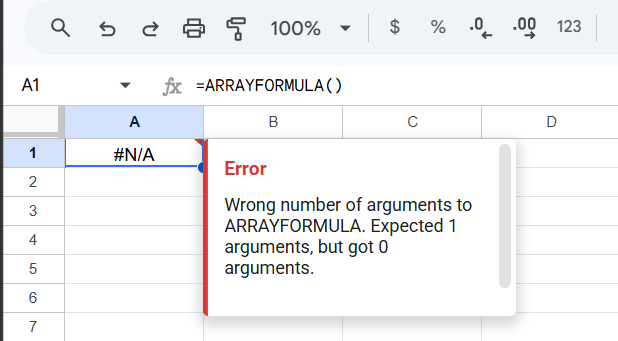
Your ARRAYFORMULA in Google Sheets isn’t expanding, returns #REF!, #VALUE!, or only calculates for one cell.
This usually happens due to range issues, conflicting data in output cells, or incorrect formula structure.
This guide fixes it step by step.
Why the Issue Happens
- Output cells already contain data (blocking expansion)
- Incorrect range references (mismatched sizes)
- Using functions that don’t support arrays
- Missing operators for element-wise calculations
- Mixing row and column ranges incorrectly
- Applying ARRAYFORMULA where it’s not needed
- Text vs number mismatch inside arrays
- Using full-column ranges inefficiently
Step-by-Step Fixes
Step 1: Ensure Output Range is Empty
ARRAYFORMULA needs space to expand.
Error:
#REF! → Array result was not expanded
Fix:
- Clear all cells below and to the right of the formula
- Ensure no hidden values block expansion
Step 2: Use Correct ARRAYFORMULA Structure
Basic format:
=ARRAYFORMULA(formula_with_ranges)
Example:
=ARRAYFORMULA(A2:A * B2:B)
If you use single cells instead of ranges, it won’t expand.
Step 3: Use Proper Operators for Arrays
Incorrect:
=ARRAYFORMULA(A2:A * B2)
This mixes array with scalar incorrectly.
Correct:
=ARRAYFORMULA(A2:A * B2:B)
Ensure both sides are compatible ranges.
Step 4: Fix Functions That Don’t Support Arrays
Some functions don’t work inside ARRAYFORMULA.
Example issue:
=ARRAYFORMULA(VLOOKUP(A2:A, A:B, 2, FALSE))
This may fail or behave inconsistently.
Better approach:
=ARRAYFORMULA(IFERROR(VLOOKUP(A2:A, A:B, 2, FALSE)))
Or use:
=MAP(A2:A, LAMBDA(x, VLOOKUP(x, A:B, 2, FALSE)))
Step 5: Match Range Sizes
Mismatched ranges cause errors.
Wrong:
=ARRAYFORMULA(A2:A100 * B2:B50)
Correct:
=ARRAYFORMULA(A2:A100 * B2:B100)
Ranges must align.
Step 6: Handle Blank Rows Properly
ARRAYFORMULA processes entire ranges, including blanks.
Fix:
=ARRAYFORMULA(IF(A2:A="", "", A2:A * B2:B))
This avoids unnecessary calculations and errors.
Step 7: Avoid Full Column Overuse
Using full columns:
=ARRAYFORMULA(A:A * B:B)
Problems:
- Performance issues
- Unexpected results
Better:
=ARRAYFORMULA(A2:A1000 * B2:B1000)
Step 8: Fix Text vs Number Issues
If data types mismatch, calculations fail.
Fix:
=ARRAYFORMULA(VALUE(A2:A) * VALUE(B2:B))
Ensure numeric operations use numeric data.
Step 9: Use IFERROR for Clean Output
Prevent errors from breaking the array:
=ARRAYFORMULA(IFERROR(A2:A / B2:B))
Step 10: Use ARRAYFORMULA Only When Needed
Many functions already handle arrays.
Unnecessary:
=ARRAYFORMULA(SUM(A2:A100))
Correct:
=SUM(A2:A100)
Using ARRAYFORMULA unnecessarily can cause confusion.
Common Mistakes
- Not clearing output range (causes #REF!)
- Mixing single cells with ranges
- Using unsupported functions inside ARRAYFORMULA
- Mismatched range sizes
- Ignoring blank rows
- Overusing full-column references
- Applying ARRAYFORMULA where it’s not required
Pro Tips / Better Alternatives
Use MAP for Advanced Row-wise Logic
=MAP(A2:A, B2:B, LAMBDA(a, b, a * b))
Better control than ARRAYFORMULA for complex logic.
Use BYROW for Row Calculations
=BYROW(A2:C100, LAMBDA(row, SUM(row)))
Cleaner for row-wise operations.
Combine with FILTER
=ARRAYFORMULA(FILTER(A2:C100, B2:B100="Sales"))
Dynamic filtering with expansion.
Use Helper Columns for Complex Logic
Break complex ARRAYFORMULA into steps:
- Column A → input
- Column B → intermediate
- Column C → final
Improves debugging and stability.
Optimize Large Sheets
- Limit ranges
- Avoid nested ARRAYFORMULA
- Reduce volatile functions
Bottom Line
If ARRAYFORMULA isn’t working, fix in this order:
- Clear output range (fix #REF!)
- Use correct range-based structure
- Match range sizes
- Handle blanks properly
- Avoid unsupported functions
- Limit full-column usage
Most ARRAYFORMULA issues come from range conflicts and structure errors.
Fix those, and your formulas will scale cleanly across your data.