
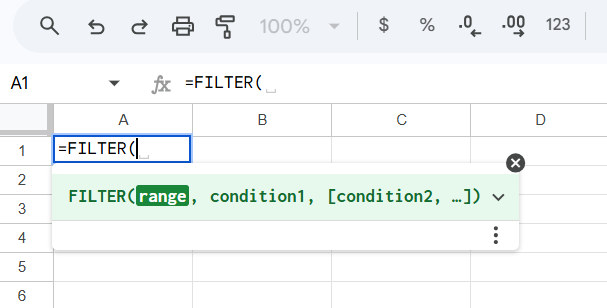
Your FILTER function in Google Sheets is returning #N/A, #VALUE!, or empty results when it should return data.
This typically means your conditions don’t match the data, ranges are misaligned, or there’s a data type issue.
This guide fixes it step by step.
Why the Issue Happens
- Condition range and data range are different sizes
- No matching results (
#N/A) - Text vs number mismatch
- Extra spaces or hidden characters
- Incorrect logical conditions
- Using multiple conditions incorrectly
- Mixed data types in the same column
- Referencing wrong columns
Step-by-Step Fixes
Step 1: Check Basic FILTER Syntax
Correct structure:
=FILTER(range, condition1, [condition2, ...])
Example:
=FILTER(A2:C100, B2:B100="Sales")
range→ data to returncondition→ must match row-wise
If syntax is wrong, fix this first.
Step 2: Fix Range Size Mismatch
This is a common error (#VALUE!).
Wrong:
=FILTER(A2:C100, B2:B50="Sales")
Ranges must match exactly.
Correct:
=FILTER(A2:C100, B2:B100="Sales")
Step 3: Fix #N/A (No Matches Found)
If no rows meet the condition, FILTER returns #N/A.
Fix with fallback:
=IFERROR(FILTER(A2:C100, B2:B100="Sales"), "No Data")
Also verify:
- Does “Sales” actually exist in column B?
Step 4: Fix Text vs Number Mismatch
Example issue:
- Column contains
"100"(text) - You filter with
100(number)
Fix:
=FILTER(A2:C100, VALUE(B2:B100)=100)
or
=FILTER(A2:C100, B2:B100="100")
Match the data type exactly.
Step 5: Remove Extra Spaces
Hidden spaces break matches.
Fix:
=FILTER(A2:C100, TRIM(B2:B100)="Sales")
To clean data:
=ARRAYFORMULA(TRIM(B2:B100))
Step 6: Use Correct Logical Conditions
For numbers:
=FILTER(A2:C100, C2:C100>100)
For text:
=FILTER(A2:C100, B2:B100="Sales")
Avoid mixing conditions incorrectly.
Step 7: Apply Multiple Conditions Correctly
Use * for AND:
=FILTER(A2:C100, (B2:B100="Sales") * (C2:C100>100))
Use + for OR:
=FILTER(A2:C100, (B2:B100="Sales") + (B2:B100="Marketing"))
Incorrect use of commas can break logic.
Step 8: Fix Empty or Blank Conditions
If filtering blanks:
=FILTER(A2:C100, B2:B100<>"")
If blanks exist but are not visible, clean data first.
Step 9: Avoid Full Column References
Using full columns:
=FILTER(A:C, B:B="Sales")
can cause:
- Slow performance
- Unexpected results
Better:
=FILTER(A2:C1000, B2:B1000="Sales")
Step 10: Debug with Simple Condition
If complex FILTER fails, simplify:
=FILTER(A2:A100, B2:B100="Sales")
Then gradually add conditions.
This isolates the issue.
Common Mistakes
- Mismatched range sizes
- Expecting results when no match exists
- Ignoring text vs number differences
- Not removing extra spaces
- Using incorrect AND/OR logic
- Referencing wrong columns
- Using full-column ranges in large datasets
Pro Tips / Better Alternatives
Use QUERY for Complex Filters
=QUERY(A1:C100, "SELECT A, B WHERE C > 100", 1)
Better for structured filtering and large datasets.
Combine FILTER with SORT
=SORT(FILTER(A2:C100, C2:C100>100), 3, FALSE)
Filters and sorts in one step.
Use UNIQUE with FILTER
=UNIQUE(FILTER(A2:A100, B2:B100="Sales"))
Removes duplicates from filtered results.
Use ARRAYFORMULA for Dynamic Data
=ARRAYFORMULA(FILTER(A2:C, B2:B="Sales"))
Expands automatically as data grows.
Clean Data Before Filtering
Use:
=TRIM()
=CLEAN()
=VALUE()
Clean data prevents silent failures.
Bottom Line
If FILTER isn’t working, fix in this order:
- Match range sizes exactly
- Verify condition actually exists
- Fix data types (text vs number)
- Remove extra spaces
- Apply correct logical conditions
- Avoid full column references
Most FILTER issues come from data mismatch and range errors.
Fix those, and your filters will work reliably.