
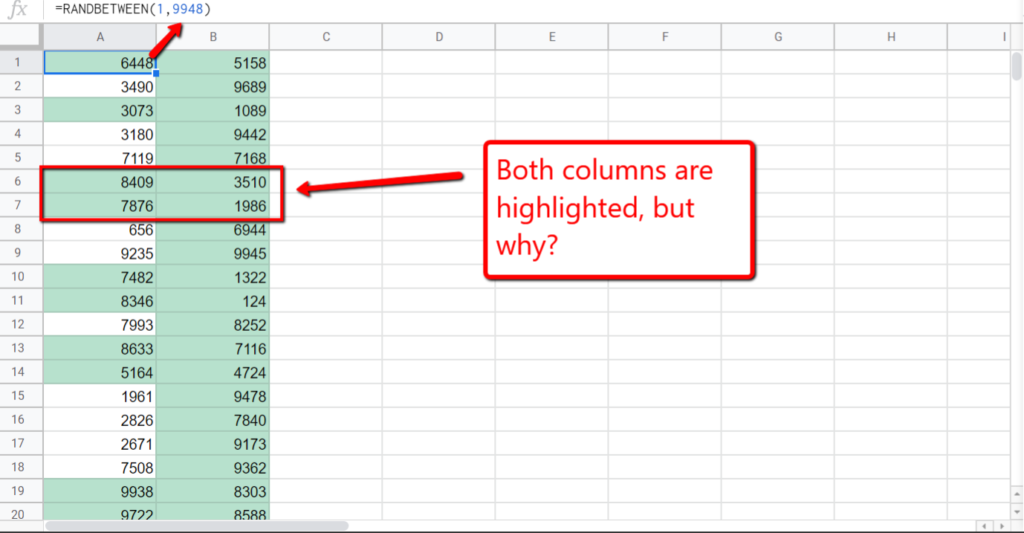
Your conditional formatting in Google Sheets isn’t applying correctly, rules don’t trigger, wrong cells are highlighted, or nothing happens at all.
This usually shows up as missing highlights, incorrect matches, or rules that work inconsistently.
This guide fixes it step by step.
Why the Issue Happens
- Wrong range selected for the rule
- Formula references not aligned with the range
- Absolute vs relative reference errors (
$) - Text vs number mismatch
- Extra spaces or hidden characters
- Rule priority conflicts (multiple rules overlapping)
- Incorrect custom formula syntax
- Applying rule to entire column incorrectly
Step-by-Step Fixes
Step 1: Check the Applied Range
Conditional formatting only works within the selected range.
Fix:
- Go to Format → Conditional formatting
- Verify “Apply to range”
Example:
A2:A100
If your data extends beyond this, the rule won’t apply.
Step 2: Use Correct Custom Formula Structure
When using “Custom formula is”, the formula must return TRUE/FALSE.
Correct:
=A2="Sales"
Wrong:
=A2
Always define a condition.
Step 3: Fix Relative vs Absolute References
This is a major source of errors.
Example:
You apply rule to:
A2:C100
Correct formula:
=$B2="Sales"
$Blocks column2adjusts row dynamically
Wrong:
=B2="Sales"
This shifts incorrectly across columns.
Step 4: Match Data Types (Text vs Number)
If formatting doesn’t trigger, check data type.
Example issue:
- Cell contains
"100"(text) - Rule checks
>100(number)
Fix:
=VALUE(A2)>100
Or ensure column is formatted as number.
Step 5: Remove Extra Spaces
Hidden spaces break matching.
Fix:
=TRIM(A2)="Sales"
If data is messy, clean it first using TRIM.
Step 6: Check Rule Priority
If multiple rules exist, order matters.
Fix:
- Open conditional formatting panel
- Reorder rules (drag up/down)
- Ensure correct rule is on top
Conflicting rules can override each other.
Step 7: Fix Whole Column Rules
If applying to entire column:
A:A
Use:
=A1="Sales"
NOT:
=A2="Sales"
Row reference must match the first row of the range.
Step 8: Avoid Incorrect Range + Formula Combo
Example issue:
Range:
A2:C100
Formula:
=A2="Sales"
This only checks column A but applies to all columns → inconsistent results.
Fix:
=$A2="Sales"
Step 9: Test with Simple Rule First
If complex rule fails, simplify.
Start with:
=A2="Test"
If this works, gradually add complexity.
Step 10: Reapply Rule (Fix Glitches)
Sometimes formatting bugs occur.
Fix:
- Delete the rule
- Recreate it from scratch
This resolves hidden issues.
Common Mistakes
- Using wrong range
- Incorrect
$usage in formulas - Ignoring text vs number mismatch
- Not cleaning spaces
- Applying formula to wrong column
- Overlapping rules causing conflicts
- Using incorrect custom formula syntax
- Applying rules to entire column incorrectly
Pro Tips / Better Alternatives
Highlight Entire Rows Based on One Condition
Apply to range:
A2:C100
Formula:
=$B2="Sales"
This highlights full rows based on column B.
Use AND for Multiple Conditions
=AND($B2="Sales", $C2>100)
More precise control.
Use OR for Flexible Conditions
=OR($B2="Sales", $B2="Marketing")
Use ISBLANK to Highlight Missing Data
=ISBLANK(A2)
Use Conditional Formatting for Error Detection
=ISERROR(A2)
Helps identify broken formulas.
Bottom Line
If conditional formatting isn’t working, fix in this order:
- Verify correct range
- Fix formula structure (must return TRUE/FALSE)
- Use proper
$references - Match data types
- Remove extra spaces
- Check rule priority
Most issues come from reference errors and data inconsistencies.
Fix those, and your conditional formatting will work reliably.