
Your QUERY function in Google Sheets is returning #VALUE!, #N/A, or incorrect results, or not returning anything at all.
This usually comes down to syntax errors, column reference issues, or data type mismatches.
This guide shows exactly how to fix it.
Why the Issue Happens
- Incorrect query syntax (SQL-like string errors)
- Wrong column references (
Col1,A, etc.) - Header row misconfigured
- Text vs number mismatch in conditions
- Missing quotes in query string
- Date format errors
- Using full column ranges with inconsistent data
- Combining QUERY with IMPORTRANGE incorrectly
Step-by-Step Fixes
Step 1: Use Correct QUERY Structure
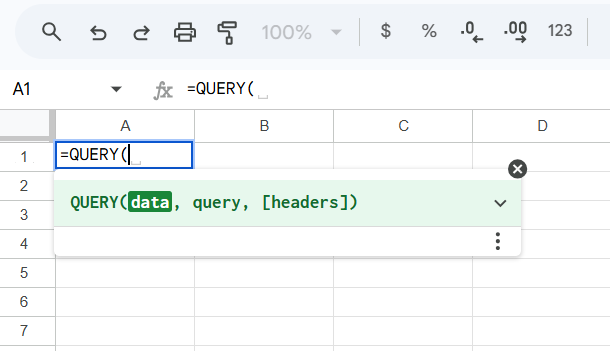
Basic syntax:
=QUERY(data, "query", [headers])
Example:
=QUERY(A1:C100, "SELECT A, B WHERE C > 100", 1)
data→ range"query"→ SQL-like statement1→ number of header rows
If structure is wrong, the function fails.
Step 2: Fix Column References
Two formats exist:
Using column letters:
=QUERY(A1:C100, "SELECT A, B WHERE C > 100", 1)
Using Col notation (common with IMPORTRANGE):
=QUERY(A1:C100, "SELECT Col1, Col2 WHERE Col3 > 100", 1)
Do not mix both styles incorrectly.
Step 3: Set Header Row Correctly
If headers are misdefined, QUERY misinterprets data.
Example:
=QUERY(A1:C100, "SELECT A", 1)
1→ first row is header
If your data has no headers:
=QUERY(A1:C100, "SELECT Col1", 0)
Wrong header setting leads to wrong results or errors.
Step 4: Fix Text vs Number Conditions
QUERY is strict about data types.
Wrong:
=QUERY(A1:C100, "SELECT A WHERE C = 100", 1)
If column C is text "100", this fails.
Fix:
=QUERY(A1:C100, "SELECT A WHERE C = '100'", 1)
Rule:
- Numbers → no quotes
- Text → use quotes
Step 5: Fix Quotes Inside Query
QUERY uses double quotes for the whole string and single quotes inside.
Correct:
=QUERY(A1:C100, "SELECT A WHERE B = 'Sales'", 1)
Wrong:
=QUERY(A1:C100, "SELECT A WHERE B = "Sales"", 1)
This breaks the formula.
Step 6: Fix Date Format Issues
Dates must follow QUERY format:
yyyy-mm-dd
Example:
=QUERY(A1:C100, "SELECT A WHERE B > date '2024-01-01'", 1)
Wrong formats (like 01/01/2024) will fail.
Step 7: Handle Blank or Mixed Data
QUERY fails when columns contain mixed data types.
Example:
- Numbers + text in same column
Fix:
- Clean data
- Use consistent formats
Optional:
=QUERY(A1:C100, "SELECT A WHERE C IS NOT NULL", 1)
Step 8: Fix QUERY with IMPORTRANGE
Common error:
=QUERY(IMPORTRANGE("ID","Sheet1!A:C"), "SELECT A", 1)
This fails because imported data uses Col1, not A.
Fix:
=QUERY(IMPORTRANGE("ID","Sheet1!A:C"), "SELECT Col1", 1)
Step 9: Debug with Simple Query
If complex query fails, simplify.
Start with:
=QUERY(A1:C100, "SELECT A", 1)
Then gradually add conditions.
This helps isolate the issue.
Step 10: Avoid Full Column References
Using:
=QUERY(A:C, "SELECT A WHERE B > 100", 1)
can cause:
- Slow performance
- Inconsistent results
Better:
=QUERY(A1:C1000, "SELECT A WHERE B > 100", 1)
Common Mistakes
- Mixing
A, B, CwithCol1, Col2 - Forgetting quotes for text values
- Incorrect header row setting
- Using wrong date format
- Misplacing quotes inside query
- Using QUERY on dirty or inconsistent data
- Not testing with simple queries first
Pro Tips / Better Alternatives
Combine QUERY with FILTER for Flexibility
=FILTER(A:C, C:C > 100)
Simpler when conditions are basic.
Use Named Ranges
Instead of:
=QUERY(A1:C100, ...)
Use:
=QUERY(SalesData, ...)
Improves readability and reduces errors.
Clean Data Before QUERY
Use:
=TRIM()
=CLEAN()
=VALUE()
Clean data prevents silent failures.
Use LABEL for Better Output
=QUERY(A1:C100, "SELECT A, B LABEL A 'Name', B 'Revenue'", 1)
Improves presentation.
Optimize Large Queries
- Reduce columns
- Avoid unnecessary SELECT *
- Filter early
Example:
=QUERY(A1:C1000, "SELECT A WHERE C > 100", 1)
Bottom Line
If QUERY isn’t working, fix in this order:
- Correct syntax and structure
- Use proper column references
- Set header row correctly
- Match data types (text vs number)
- Fix quotes and date formats
- Test with a simple query
Most QUERY errors come from syntax and data consistency issues.
Fix those, and your queries will work reliably.