
Your IMPORTRANGE formula in Google Sheets is returning #REF!, #N/A, or not pulling data at all.
This usually means there’s a permissions issue, incorrect syntax, or a data/range mismatch.
This guide shows exactly how to fix it.
Why the Issue Happens
- Access to the source sheet not granted
- Incorrect spreadsheet URL or key
- Wrong range format (sheet name or cell reference)
- Source sheet renamed or deleted
- Data not loading due to size limits
- Nested
IMPORTRANGEor too many external calls - Slow refresh or connection issues
Step-by-Step Fixes
Step 1: Grant Access (Most Common Issue)
If you see #REF!, access is likely not allowed.
Fix:
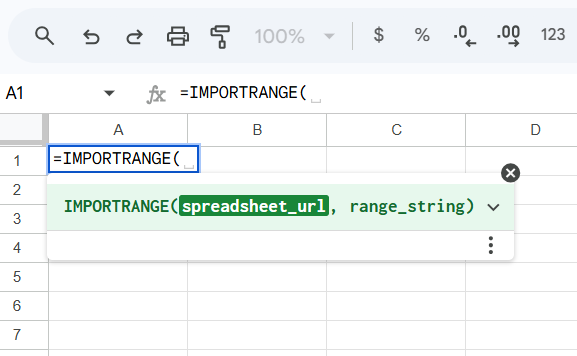
- Enter the formula:
=IMPORTRANGE("spreadsheet_url", "Sheet1!A:B")
- Click the cell
- Click “Allow access”
Without this step, the formula will not work.
Step 2: Use Correct URL or Spreadsheet Key
You can use either:
Full URL:
=IMPORTRANGE("https://docs.google.com/spreadsheets/d/FILE_ID/edit", "Sheet1!A:B")
Or just the file ID:
=IMPORTRANGE("FILE_ID", "Sheet1!A:B")
If the ID is wrong, data won’t load.
Step 3: Fix Range Syntax
Range must follow this format:
"SheetName!Range"
Example:
=IMPORTRANGE("FILE_ID", "SalesData!A1:C100")
Common issues:
- Sheet name misspelled
- Missing quotes
- Wrong cell references
If sheet name has spaces:
=IMPORTRANGE("FILE_ID", "'Sales Data'!A:B")
Step 4: Fix #N/A (Loading or Not Found)
If you see #N/A, it may be loading or failing.
Fix:
- Wait a few seconds (large files take time)
- Re-enter the formula
- Check if source sheet still exists
Optional:
=IFERROR(IMPORTRANGE("FILE_ID", "Sheet1!A:B"), "Not Available")
Step 5: Ensure Source File Permissions
Even after clicking “Allow access,” access can fail if permissions are restricted.
Fix:
- Open source sheet
- Click Share
- Set access to:
- “Anyone with the link”
OR - Ensure your account has permission
- “Anyone with the link”
Without proper access, IMPORTRANGE will fail.
Step 6: Avoid Nested IMPORTRANGE
Bad practice:
=IMPORTRANGE("ID1", "Sheet1!A:B") + IMPORTRANGE("ID2", "Sheet1!A:B")
Or using IMPORTRANGE inside QUERY/FILTER repeatedly.
Problem:
- Slows performance
- Causes loading failures
Fix:
- Import once in a helper sheet
- Reference that data locally
Step 7: Reduce Data Size
Large imports can fail or lag.
Bad:
=IMPORTRANGE("FILE_ID", "Sheet1!A:Z")
Better:
=IMPORTRANGE("FILE_ID", "Sheet1!A1:D1000")
Limit range to required data.
Step 8: Force Refresh
Sometimes data doesn’t update.
Fix:
- Re-enter formula
- Add a trigger:
=IMPORTRANGE("FILE_ID", "Sheet1!A:B") + NOW()*0
This forces recalculation.
Step 9: Check Sheet Renaming
If the source tab name changes, formula breaks.
Example:
=IMPORTRANGE("FILE_ID", "OldName!A:B")
Fix:
- Update to new sheet name
Step 10: Test with Simple Import First
Before using complex formulas, test basic import:
=IMPORTRANGE("FILE_ID", "Sheet1!A1")
If this fails, issue is access or file—not your formula logic.
Common Mistakes
- Not clicking “Allow access”
- Using wrong spreadsheet ID
- Misspelling sheet name
- Forgetting quotes around range
- Importing entire columns unnecessarily
- Using multiple IMPORTRANGE calls repeatedly
- Ignoring source file permissions
- Expecting instant refresh
Pro Tips / Better Alternatives
Use QUERY with IMPORTRANGE (Efficient Filtering)
Instead of importing everything:
=QUERY(IMPORTRANGE("FILE_ID", "Sheet1!A:C"), "SELECT Col1, Col2 WHERE Col3 > 100")
Reduces data load and improves performance.
Use Helper Sheet for Imports
Best practice:
- Create a separate tab
- Use IMPORTRANGE once
- Reference it locally
This improves speed and stability.
Combine with ARRAYFORMULA for Dynamic Use
=ARRAYFORMULA(IMPORTRANGE("FILE_ID", "Sheet1!A:B"))
Handles dynamic expansion.
Monitor Performance
If your model slows down:
- Reduce external connections
- Avoid chaining multiple imports
- Consolidate data sources
Bottom Line
If IMPORTRANGE isn’t working, fix in this order:
- Click Allow access
- Verify spreadsheet ID or URL
- Fix range syntax and sheet name
- Check source file permissions
- Reduce data size and avoid nesting
- Force refresh if needed
Most issues come down to permissions, syntax, or scale.
Fix those, and IMPORTRANGE will work reliably.